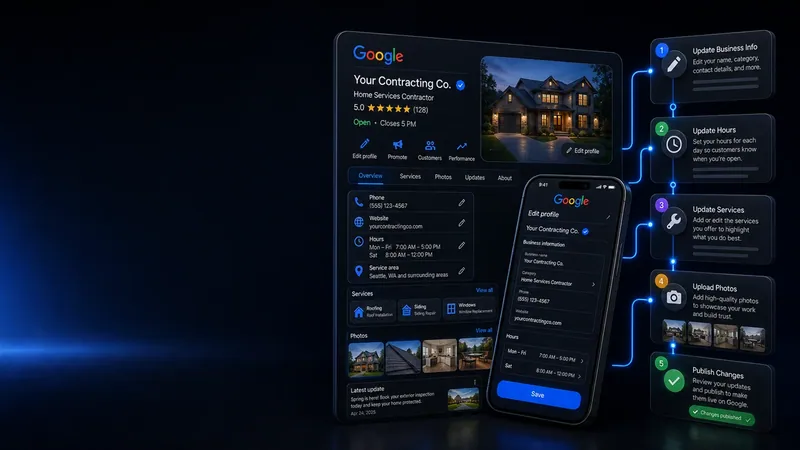
Here’s how to update Google Business Profile photos, posts, and review replies — about five minutes a month, start to finish. We get your profile set up and optimized as part of every build, but keeping it active afterward is on you.
Why this actually matters
Google doesn’t just look at whether your profile is filled out once — it pays attention to whether it’s still active. A profile that’s had the same five photos and zero posts since the day it was set up reads as stale. A profile that’s getting new photos and updates regularly reads as a real, active business — and that’s a direct input into prominence, one of the three pillars Google uses to decide who shows up first in local search (see our guide on how Google ranking actually works for the other two).
It’s not just about the algorithm, either. A customer who clicks into your profile and sees recent job photos and a post from a few weeks ago sees a business that’s actively working. A profile frozen in time — even a well-built one — quietly raises the question of whether you’re still around, still busy, still doing the work. Take five minutes to update your Google Business Profile and that question never comes up.
This is the cheapest, fastest way to keep telling Google (and every customer who looks you up) that you’re open, active, and doing good work right now — not just when the site first went live.
Step 1: Find your profile
Search your business name on Google, or go to business.google.com and sign in with the Google account tied to your profile. You’ll land on a dashboard for your business — that’s your control panel for everything below. If the account tied to the profile isn’t the one you’re signed in with, Google’s own Business Profile help pages walk through recovering access.
Step 2: Add photos
If you only learn how to update Google Business Profile photos, start there — they’re what a customer actually looks at before deciding to call. From the dashboard, look for Photos in the menu on the left (or a camera icon if you’re on the mobile app). From there:
On desktop: business.google.com → Photos → Add photos → drag and drop or select files → same category options.
What to actually upload: finished job photos, before-and-afters, your truck or crew on-site, and anything that shows real work — not stock images. Aim for a few new photos every month rather than a big batch once a year; steady, recent activity reads better to both customers and Google than a pile of old photos from the day the profile was set up.
Step 3: Post an update
Look for Posts (sometimes called “Add update”) in the same dashboard. Click Add update, choose a type — What’s New, Offer, or Event are the common ones for a trade business — write a short line about what you want to share, add a photo if you’ve got one, and hit publish.
Good, simple post ideas: a recent job you finished, a seasonal reminder (gutter cleaning before storm season, AC tune-ups before summer), or a limited-time offer if you’re running one. Posts show up directly on your profile and expire after about a week, so it’s meant to be a quick, recurring habit — not a one-time thing.
Same idea as review replies applies here: the words you actually use in the post matter, not just the fact that you posted something. A generic “Check us out!” doesn’t tell Google (or a customer skimming past) what you do or where you do it. Working the service and your town into the post naturally does both.
A seasonal post works the same way: instead of “Now booking for fall!” try “Booking gutter cleaning now for Paradise and the surrounding area before the fall rains hit.” Still short, still sounds like a person wrote it — just doing double duty as a relevance signal too.
Step 4: Respond to any new reviews while you’re in there
Since you’re already in the dashboard, check the Reviews tab and reply to anything new. We’ve got a full guide on getting and responding to reviews the right way if you want the details on what to actually say.
How to update Google Business Profile every month without forgetting
Once a month is plenty. That’s the whole routine for how to update Google Business Profile: a few photos, one post, and replies to anything new. It takes about five minutes and keeps the profile reading as active. There’s no bonus for posting daily, and there’s a real cost to letting it sit untouched for a year.
This isn’t complicated, it’s just easy to forget. Once you know how to update Google Business Profile, the only hard part left is remembering to do it.
How we help with this
Google Business Profile optimization — $150. If you’d rather not learn how to update Google Business Profile at all, we’ll go through the whole profile — categories, services, service area, hours, description and photos — and get it set up the way it should be, then hand it back to you ready for the monthly five minutes above.
Photo gallery update — $25. Different job, same photos: send us up to 10 shots and we’ll get them added to the gallery on your website. No subscription, just $25 whenever you’ve got fresh work worth showing off.
Make your next first impression a better one.
New websites $697. Redesigns $597. Nothing due up front. Standard hosting is $37 per month separately.
Let’s talk about your website